

What is Video Generation?
Video Generation lets you create short videos from text prompts, images, or existing video clips. Use it for social ads, product demos, storyboards, motion concepts, and campaign assets you want to keep with the rest of your Project files. Start from the material you already have. Click Generate Video below the input box to enter video mode, then describe the clip you want. You can also ask for a video directly in your message. If a model matters, choose it from the video model menu or mention the model in your prompt; otherwise, describe the result and let Happycapy choose a suitable path.Three ways to start
Choose the input you already have: a prompt, one or more images, or an existing video.1. Start from text
Describe the video you want. Include the subject, scene, motion, style, duration, aspect ratio, and where you plan to use it.2. Start from images
Upload images when you want more control over the first frame, last frame, subject, product, character, or visual style.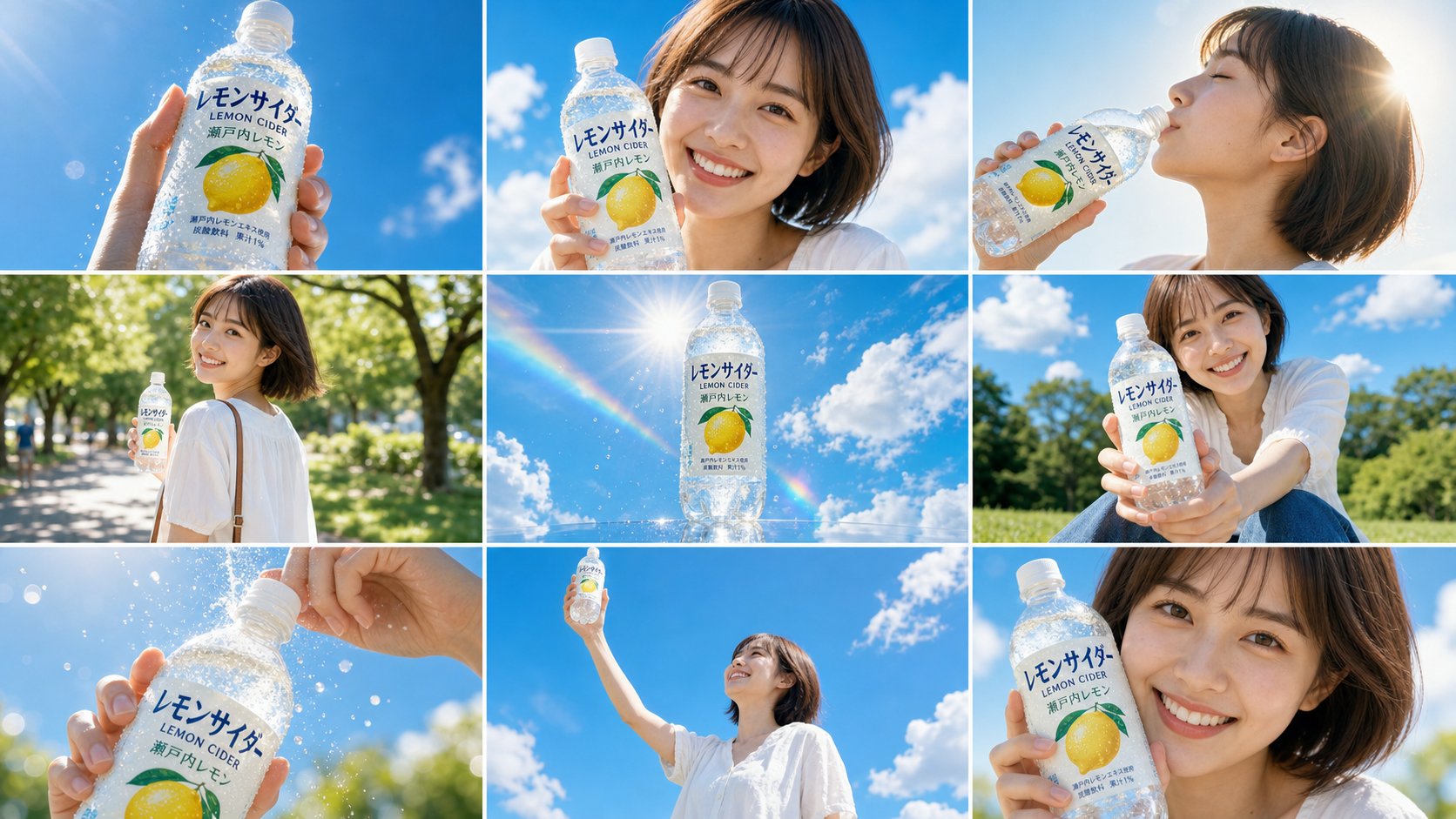
Full storyboard prompt
Full storyboard prompt
Use the attached 9-panel storyboard image (https://storage.res-capy.com/img-prompt/lemon-cider-ad.png) as the visual reference and shot sequence guide for this advertisement video.

The storyboard shows a cheerful Japanese young woman in a white outfit holding a transparent lemon sparkling water bottle (“レモンサイダー LEMON CIDER 瀬戸内レモン”) against a bright blue summer sky. Reproduce the character’s appearance, product design, color palette, and each shot composition faithfully from the reference.

Follow the 9 panels in order as the scene sequence:

Panel 1 (0:00-0:02): Animate the bottle being thrust toward camera, condensation droplets catching the light, bubbles rising inside the bottle.

Panel 2 (0:02-0:04): The girl turns to face camera with a bright smile, her hair moves gently in the breeze, sunlight glints behind her.

Panel 3 (0:04-0:06): She slowly tilts her head back to take a sip, eyes closing in satisfaction, a warm sunlight halo blooms around her silhouette.

Panel 4 (0:06-0:08): She walks along the sun-drenched path, glances back over her shoulder with a playful smile, leaves shimmer in the background.

Panel 5 (0:08-0:10): The bottle floats centered in frame against the deep blue sky, sunlight refracts through it creating a slow rainbow arc sweep.

Panel 6 (0:10-0:11): She extends the bottle toward the viewer with both hands, leaning slightly forward with a warm inviting smile.

Panel 7 (0:11-0:12): Extreme close-up: the bottle cap twists open in slow motion, fizz and bubbles burst upward backlit by golden sunlight.

Panel 8 (0:12-0:13): She raises the bottle high above her head laughing freely, camera drifts upward to reveal the vast open blue sky.

Panel 9 (0:13-0:15): She holds the bottle close to her face, looks softly into the camera with a genuine smile. Slow push in. Freeze on final frame.

STYLE: Match the color grading in the reference exactly: overexposed highlights, airy whites, vivid sky blue, warm golden sunlight. Cinematic shallow depth of field. Smooth handheld camera motion with subtle drift. Slow motion on sip, fizz, and final freeze moments.3. Edit a video
Upload a clip when you already have footage and want Happycapy to create a new version, change the subject, adjust the action, or keep refining the same scene.Keep iterating
After a video is generated, keep working in the same conversation. Ask Happycapy to make another version, adjust the motion, create a cover image, write a caption, or save the final files with clear names.Related resources
- Image Creation & Editing: create still images, references, and cover assets.
- Files: find generated MP4s, cover images, and supporting files.
- Credits & usage: understand how media generation uses credits.
- Generate a short video ad: see a complete video ad workflow.