

What are Files?
Files is the file browser for your Happycapy sandbox. Use it to find uploaded materials, Project files, and output files Happycapy creates while working. Files is especially useful after tasks that produce assets, reports, code, data exports, images, or videos.Open Files
Open Settings, then click Files. You can browse files from: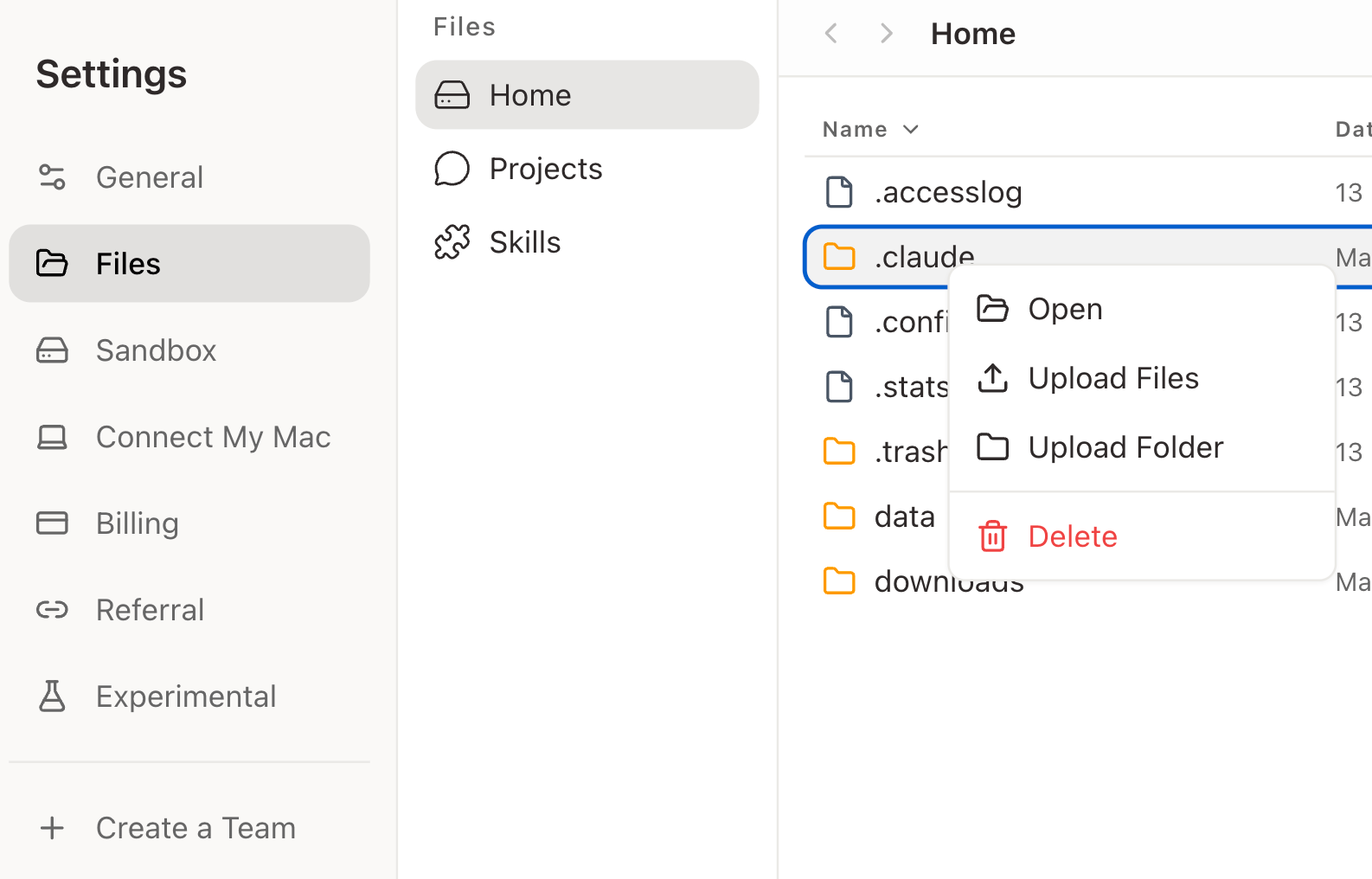
- Home — files in your sandbox
- Projects — files grouped by Project
- Skills — installed Skill files
Find and manage files
Use search to find files by name. Switch between grid and list view when you need to scan images, folders, or file details. You can open files, preview supported formats, rename, move, delete, or download files from the file browser.Upload files
Attach files from the input box with +, or drag files into the conversation. Happycapy can use those files as context for the task. Happycapy can work with many common file types, including documents, spreadsheets, presentations, images, videos, archives, code files, Markdown, CSV, JSON, and more. If you are unsure, upload the file and ask Happycapy to read or inspect it.Work with outputs
When Happycapy creates files, they are saved in your sandbox and can be found in Files. For example, you can ask:Files and Projects
Project files stay with the Project. Sessions inside the same Project can read and write the same files, so you can continue work across sessions without re-uploading the same files. See Projects for how Projects organize sessions and files.Locate files from a Project or session link
When a conversation link matches either format below, the value after/s/ is the Project ID. Use that Project ID when searching Files for JSONL logs or workspace files.
Conversation link
https://happycapy.ai/s/d94c8b54-161d-4278-a3f5-16e5046d66cd
Conversation link with a sub-session
https://happycapy.ai/s/d94c8b54-161d-4278-a3f5-16e5046d66cd?sub=48c366cc-a0e0-4bf4-ac56-4fa52c7cd7a7
Project ID
d94c8b54-161d-4278-a3f5-16e5046d66cd
Find JSONL logs
Open Files, go toHome > .claude > projects, and search for the Project ID from the link.
The matching folder contains .jsonl logs for conversations under that Project. Each .jsonl represents one conversation, including the main session or a sub-session.
Find the workspace files
Open Files and use either route:- Open Projects and search for the same Project ID.
- Or go to
Home > a0 > workspaceand search for the same Project ID.