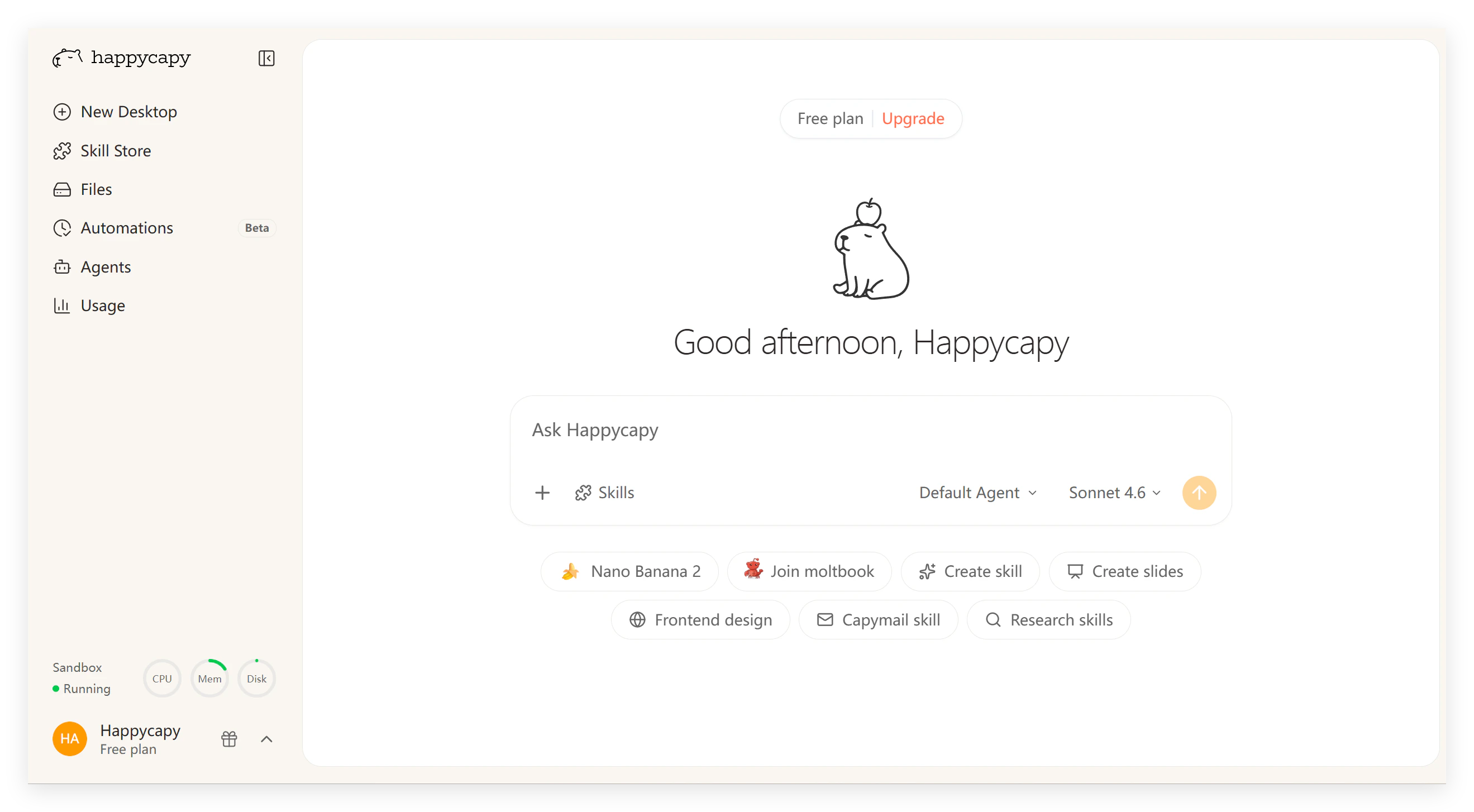

Step 1: Open Happycapy

Visit happycapy.ai, register, and log in to see the main interface:
Left Sidebar
  • Desktops
  • Skills
  • Automations
  • Skill Store
Conversation Area
  • Chat with Happycapy
  • View generated content
  • Monitor progress
File Management
  • uploads/ folder
  • outputs/ folder
  • Upload button (+)

Your first conversation

Don’t be nervous — just talk to Happycapy like you would a friend. In the input box at the bottom, try this:
Draw a cute capybara in cartoon style
Press Enter and watch Happycapy create your image. Or try:
Generate cute capybaras in different art styles
Happycapy will adjust to your requirements. You’ll see the images in the outputs/ folder and can download them. The copyright is entirely yours.

Working with files

The uploads folder

Drag files directly into the conversation window and Happycapy will process them.
Supported formats: Images (JPG/PNG), Documents (PDF/Word/Excel), Videos (MP4), Data (CSV/JSON), Code (all languages)Maximum file size: 100MB per fileBatch uploads: Multiple files at once

Quick examples to get started

The simplest example — get started in 10 seconds.Step 1: State your needsType in the input box:
Generate an image: a cute capybara sunbathing on grass
Step 2: Wait for generationThe image will appear in the conversation area in about 10-15 seconds and automatically save to the outputs/ folder.Step 3: Download locally
  • Method 1: Find the image in the right file list, right-click to download
  • Method 2: Simply say “package this image for me to download”
Not satisfied? Just say “Generate another one with a more cartoon style” and Happycapy will adjust accordingly.
Learn to upload files so Happycapy can help you process various documents.Step 1: Upload files
  • Method 1: Drag and drop files directly into the conversation window
  • Method 2: Click the + button next to the input box to select files
Step 2: Tell Happycapy what to do
Help me organize this Excel file:
1. Remove duplicate data
2. Sort by date
3. Generate a clean new spreadsheet
Step 3: Wait for processingHappycapy will read the file, process the data, generate new files, and explain what changes were made. Processed files are saved to the outputs/ folder.

Quick tips for success

Be specific

The more detailed your request, the better the results

Work iteratively

Start simple and refine step by step

Provide examples

Upload reference images for Happycapy to learn from

Give feedback

If results aren’t perfect, point out what needs adjustment

Next steps

Explore common questions

Learn about data safety, supported AI models, file size limits, and more