

Overview
Connect My Mac lets Happycapy run tasks directly on your Mac. Instead of working only inside the cloud sandbox, Happycapy can operate on your local machine — managing files, running scripts, and controlling applications. You can connect multiple Macs at the same time.Your Mac, connected
Run tasks directly on your local machine.
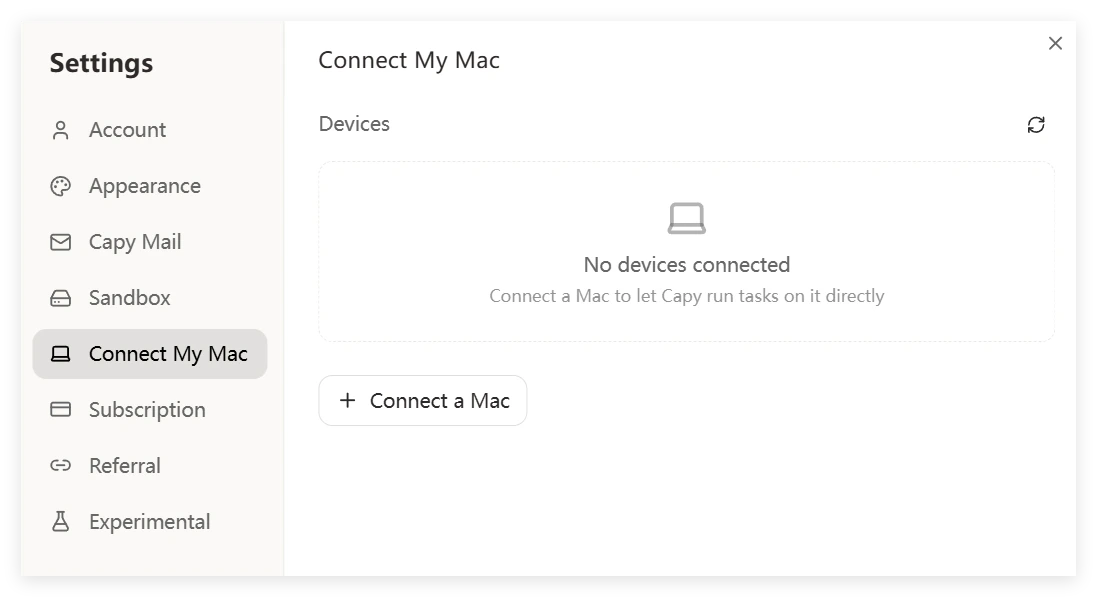
How to Connect
- Open Settings (click your avatar in the bottom-left corner)
- Go to Connect My Mac
- Click + Connect a Mac and follow the setup instructions
What You Can Do
With a connected Mac, Happycapy can:- Run commands and scripts on your local machine
- Access and manage local files
- Control local applications
- Work across both the cloud sandbox and your Mac in the same session