> ## Documentation Index
> Fetch the complete documentation index at: https://docs.happycapy.ai/llms.txt
> Use this file to discover all available pages before exploring further.

# 동영상 생성

> Project 안에서 프롬프트, 이미지, 기존 클립으로 짧은 동영상을 만듭니다

## 동영상 생성이란?

동영상 생성은 텍스트 프롬프트, 이미지, 기존 동영상 클립으로 짧은 동영상을 만드는 기능입니다. 소셜 광고, 제품 데모, 스토리보드, 모션 콘셉트, Project 파일과 함께 보관할 캠페인 에셋에 사용할 수 있습니다.

이미 가지고 있는 자료에서 시작하세요. 입력창 아래의 **Generate Video**를 클릭해 동영상 모드로 들어간 뒤 만들고 싶은 클립을 설명합니다. 메시지에서 바로 동영상을 만들어 달라고 요청할 수도 있습니다. 특정 모델이 중요하다면 동영상 모델 메뉴에서 선택하거나 프롬프트에 모델을 언급하세요. 그렇지 않다면 원하는 결과를 설명하고 Happycapy가 적절한 경로를 선택하게 두면 됩니다.

## 세 가지 시작 방법

이미 가지고 있는 입력을 선택하세요: 프롬프트, 하나 이상의 이미지, 또는 기존 동영상입니다.

### 1. 텍스트에서 시작하기

원하는 동영상을 설명하세요. 주제, 장면, 움직임, 스타일, 길이, 화면 비율, 사용할 플랫폼을 함께 적으면 좋습니다.

<div style={{ display: 'grid', gridTemplateColumns: 'repeat(auto-fit, minmax(250px, 1fr))', gap: '1rem', margin: '1rem 0 2rem' }}>
  <div style={{ gridColumn: '1 / -1', border: '1px solid rgba(46, 41, 41, 0.1)', borderRadius: '12px', overflow: 'hidden', background: '#fffdf9' }}>
    <div style={{ padding: '1.1rem' }}>
      <div style={{ fontSize: '0.78rem', textTransform: 'uppercase', letterSpacing: '0.08em', color: '#df7657', fontWeight: 750 }}>텍스트에서 동영상</div>
      <h3 style={{ margin: '0.35rem 0 0.55rem', fontSize: '1.3rem' }}>움직임 아이디어를 세로 클립으로 만들기</h3>
      <p style={{ margin: '0 0 1rem', color: '#6e6861', fontSize: '0.95rem', lineHeight: 1.55 }}>원하는 최종 움직임부터 설명하세요. 주제, 카메라 앵글, 반복 동작, 감각적인 디테일, 목표 비율을 포함합니다.</p>

      <div style={{ display: 'grid', gridTemplateColumns: 'repeat(auto-fit, minmax(240px, 1fr))', gap: '1.25rem', alignItems: 'stretch' }}>
        <div style={{ height: '100%', padding: '0.85rem', borderRadius: '9px', background: '#f8f6f2', color: '#4d4640', fontSize: '0.86rem', lineHeight: 1.55 }}>
          <p style={{ margin: '0 0 0.65rem', color: '#8a8178', fontWeight: 700 }}>Happycapy에게 요청하기</p>
          <code style={{ whiteSpace: 'pre-wrap' }}>여러 종류의 쿠키와 사탕으로 만든 키보드에서 손이 키를 하나씩 누르는 클로즈업 장면.{"\n\n"}손끝이 닿을 때마다 해당 쿠키 키캡이 살짝 눌렸다가 빠르게 튀어 오르며, 비스킷의 바삭한 질감과 기계식 키보드의 선명한 촉각 피드백이 섞인 "click-clack, click-clack" 소리가 납니다.{"\n\n"}손가락은 일정한 리듬으로 서로 다른 키캡을 부드럽게 계속 누릅니다. 세로 동영상, 9:16 화면 비율.</code>
        </div>

        <div style={{ height: '100%', justifySelf: 'center', width: 'min(100%, 240px)', display: 'flex' }}>
          <video controls muted playsInline preload="metadata" poster="/images/features/cookie-keyboard-video-poster.jpg" style={{ display: 'block', width: '100%', aspectRatio: '9 / 16', objectFit: 'cover', margin: 0, borderRadius: '12px', border: '1px solid rgba(46, 41, 41, 0.1)', boxShadow: '0 18px 40px rgba(46, 41, 41, 0.08)' }}>
            <source src="https://mintcdn.com/happycapy/3Agk_CtGKKqauJRe/images/features/cookie-keyboard-video.mp4?fit=max&auto=format&n=3Agk_CtGKKqauJRe&q=85&s=06f85a9977ebd9fef79696830bacb24f" type="video/mp4" data-path="images/features/cookie-keyboard-video.mp4" />

            브라우저가 video 태그를 지원하지 않습니다.
          </video>
        </div>
      </div>
    </div>
  </div>
</div>

### 2. 이미지에서 시작하기

첫 프레임, 마지막 프레임, 주제, 제품, 캐릭터, 시각 스타일을 더 잘 제어하고 싶을 때 이미지를 업로드하세요.

<div style={{ display: 'grid', gridTemplateColumns: 'repeat(auto-fit, minmax(250px, 1fr))', gap: '1rem', margin: '1rem 0 2rem' }}>
  <div style={{ gridColumn: '1 / -1', border: '1px solid rgba(46, 41, 41, 0.1)', borderRadius: '12px', overflow: 'hidden', background: '#fffdf9' }}>
    <div style={{ padding: '1.1rem' }}>
      <div style={{ fontSize: '0.78rem', textTransform: 'uppercase', letterSpacing: '0.08em', color: '#df7657', fontWeight: 750 }}>이미지에서 동영상</div>
      <h3 style={{ margin: '0.35rem 0 0.55rem', fontSize: '1.3rem' }}>참조 이미지로 제품을 움직이게 하기</h3>
      <p style={{ margin: '0 0 1rem', color: '#6e6861', fontSize: '0.95rem', lineHeight: 1.55 }}>각 이미지가 무엇을 제어해야 하는지 Happycapy에게 알려주세요. 시작 프레임은 오프닝을, 끝 프레임은 목적지를, 참조 이미지는 정체성, 재질, 스타일을 안내합니다.</p>

      <div style={{ display: 'grid', gridTemplateColumns: 'repeat(auto-fit, minmax(170px, 1fr))', gap: '0.75rem', marginBottom: '1rem' }}>
        <div style={{ padding: '0.85rem', borderRadius: '10px', background: '#f8f6f2', border: '1px solid rgba(46, 41, 41, 0.08)' }}>
          <div style={{ color: '#df7657', fontSize: '0.78rem', fontWeight: 750, textTransform: 'uppercase', letterSpacing: '0.08em' }}>시작 프레임</div>
          <p style={{ margin: '0.35rem 0 0', color: '#4d4640', fontSize: '0.88rem', lineHeight: 1.45 }}>처음 보이는 순간입니다.</p>
        </div>

        <div style={{ padding: '0.85rem', borderRadius: '10px', background: '#f8f6f2', border: '1px solid rgba(46, 41, 41, 0.08)' }}>
          <div style={{ color: '#df7657', fontSize: '0.78rem', fontWeight: 750, textTransform: 'uppercase', letterSpacing: '0.08em' }}>끝 프레임</div>
          <p style={{ margin: '0.35rem 0 0', color: '#4d4640', fontSize: '0.88rem', lineHeight: 1.45 }}>최종 포즈, 레이아웃 또는 공개 장면입니다.</p>
        </div>

        <div style={{ padding: '0.85rem', borderRadius: '10px', background: '#f8f6f2', border: '1px solid rgba(46, 41, 41, 0.08)' }}>
          <div style={{ color: '#df7657', fontSize: '0.78rem', fontWeight: 750, textTransform: 'uppercase', letterSpacing: '0.08em' }}>참조 이미지</div>
          <p style={{ margin: '0.35rem 0 0', color: '#4d4640', fontSize: '0.88rem', lineHeight: 1.45 }}>제품, 캐릭터, 브랜드 또는 분위기입니다.</p>
        </div>
      </div>

      <div style={{ display: 'grid', gridTemplateColumns: 'repeat(auto-fit, minmax(260px, 1fr))', gap: '1.25rem', alignItems: 'start', marginBottom: '1rem' }}>
        <div>
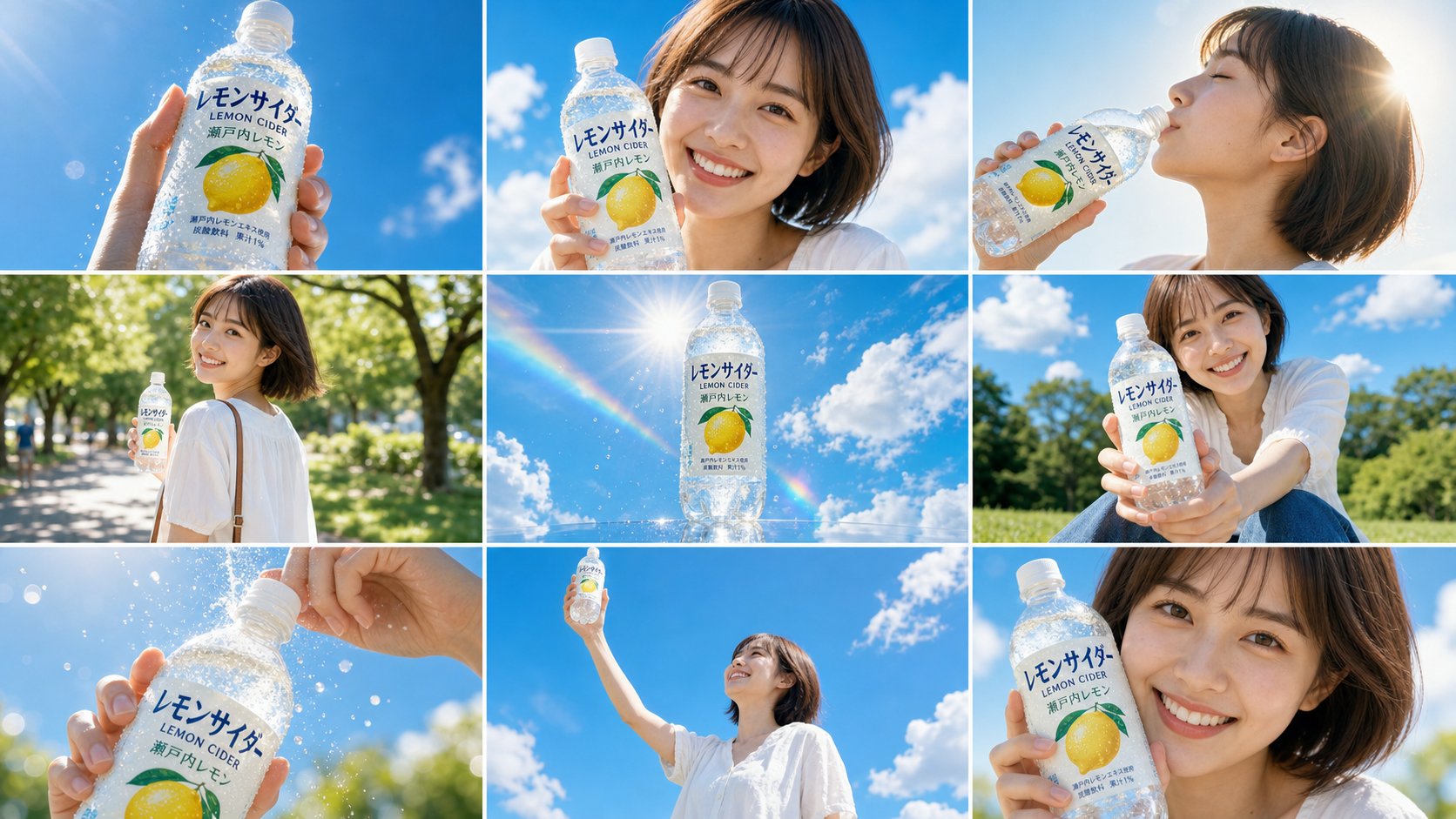
          <img src="https://mintcdn.com/happycapy/3Agk_CtGKKqauJRe/images/features/lemon-cider-storyboard.png?fit=max&auto=format&n=3Agk_CtGKKqauJRe&q=85&s=6a06f4a0528f02a54c2a065a6a04cacc" alt="이미지-투-비디오 광고용 9패널 레몬 사이다 스토리보드 참조 이미지" style={{ display: 'block', width: '100%', aspectRatio: '16 / 9', objectFit: 'cover', margin: 0, borderRadius: '12px', border: '1px solid rgba(46, 41, 41, 0.1)' }} width="1672" height="941" data-path="images/features/lemon-cider-storyboard.png" />

          <div style={{ marginTop: '0.45rem', color: '#8a8178', fontSize: '0.78rem', fontWeight: 700, textTransform: 'uppercase', letterSpacing: '0.08em' }}>스토리보드 참조</div>
        </div>

        <div>
          <video controls muted playsInline preload="metadata" poster="/images/features/lemon-cider-video-poster.jpg" style={{ display: 'block', width: '100%', aspectRatio: '16 / 9', objectFit: 'cover', margin: 0, borderRadius: '12px', border: '1px solid rgba(46, 41, 41, 0.1)', boxShadow: '0 18px 40px rgba(46, 41, 41, 0.08)' }}>
            <source src="https://mintcdn.com/happycapy/3Agk_CtGKKqauJRe/images/features/lemon-cider-video.mp4?fit=max&auto=format&n=3Agk_CtGKKqauJRe&q=85&s=0f95c2f13c2da0ab5e41162291ccdf78" type="video/mp4" data-path="images/features/lemon-cider-video.mp4" />

            브라우저가 video 태그를 지원하지 않습니다.
          </video>

          <div style={{ marginTop: '0.45rem', color: '#df7657', fontSize: '0.78rem', fontWeight: 750, textTransform: 'uppercase', letterSpacing: '0.08em' }}>생성된 동영상</div>
        </div>
      </div>

      <p style={{ margin: '0 0 1rem', color: '#6e6861', fontSize: '0.95rem', lineHeight: 1.55 }}>스토리보드는 두 가지 역할을 할 수 있습니다. 제품, 캐릭터, 색감을 고정하면서 Happycapy에게 샷 순서를 알려줍니다.</p>

      <div style={{ padding: '0.85rem', borderRadius: '9px', background: '#f8f6f2', color: '#4d4640', fontSize: '0.86rem', lineHeight: 1.55 }}>
        <p style={{ margin: '0 0 0.65rem', color: '#8a8178', fontWeight: 700 }}>Happycapy에게 요청하기</p>
        <code style={{ whiteSpace: 'pre-wrap' }}>업로드한 9패널 스토리보드 이미지를 15초 레몬 탄산수 광고의 시각 참조와 샷 순서 가이드로 사용하세요.{"\n\n"}캐릭터, 제품 라벨, 색상 팔레트, 밝은 여름 조명, 카메라 구도를 참조 이미지에 가깝게 유지하세요. 패널을 왼쪽에서 오른쪽, 위에서 아래 순서로 따르세요. 병의 물방울, 올라오는 기포, 바람에 움직이는 머리카락, 느린 음용 장면, 햇빛 플레어, 마지막 클로즈업 프리즈를 넣으세요.{"\n\n"}선명한 하늘색, 따뜻한 금빛 햇살, 얕은 심도, 부드러운 핸드헬드 카메라 움직임이 있는 산뜻한 일본 여름 광고 스타일을 사용하세요. outputs/lemon-cider-ad.mp4로 저장하세요.</code>
      </div>
    </div>
  </div>
</div>

<Accordion title="전체 스토리보드 프롬프트">
  <div style={{ padding: '0.85rem', borderRadius: '9px', background: '#f8f6f2', color: '#4d4640', fontSize: '0.86rem', lineHeight: 1.55 }}>
    <code style={{ whiteSpace: 'pre-wrap' }}>Use the attached 9-panel storyboard image ([https://storage.res-capy.com/img-prompt/lemon-cider-ad.png](https://storage.res-capy.com/img-prompt/lemon-cider-ad.png)) as the visual reference and shot sequence guide for this advertisement video.{"\n\n"}The storyboard shows a cheerful Japanese young woman in a white outfit holding a transparent lemon sparkling water bottle ("レモンサイダー LEMON CIDER 瀬戸内レモン") against a bright blue summer sky. Reproduce the character's appearance, product design, color palette, and each shot composition faithfully from the reference.{"\n\n"}Follow the 9 panels in order as the scene sequence: bottle thrust toward camera, smiling turn to camera, slow sip, walking glance-back, floating bottle hero shot, bottle offered toward viewer, cap opening close-up, bottle raised to the sky, and final close-up freeze frame.{"\n\n"}STYLE: Match the color grading in the reference exactly: overexposed highlights, airy whites, vivid sky blue, warm golden sunlight. Cinematic shallow depth of field. Smooth handheld camera motion with subtle drift. Slow motion on sip, fizz, and final freeze moments.</code>
  </div>
</Accordion>

### 3. 동영상 편집하기

이미 가지고 있는 클립에서 Happycapy가 새 버전을 만들거나, 주체를 바꾸거나, 동작을 조정하거나, 같은 장면을 계속 다듬게 하고 싶을 때 동영상을 업로드하세요.

<div style={{ display: 'grid', gridTemplateColumns: 'repeat(auto-fit, minmax(250px, 1fr))', gap: '1rem', margin: '1rem 0 2rem' }}>
  <div style={{ gridColumn: '1 / -1', border: '1px solid rgba(46, 41, 41, 0.1)', borderRadius: '12px', overflow: 'hidden', background: '#fffdf9' }}>
    <div style={{ padding: '1.1rem' }}>
      <div style={{ fontSize: '0.78rem', textTransform: 'uppercase', letterSpacing: '0.08em', color: '#df7657', fontWeight: 750 }}>동영상 편집</div>
      <h3 style={{ margin: '0.35rem 0 0.55rem', fontSize: '1.3rem' }}>기존 클립에서 일어나는 일을 바꾸기</h3>
      <p style={{ margin: '0 0 1rem', color: '#6e6861', fontSize: '0.95rem', lineHeight: 1.55 }}>소스 동영상을 Happycapy에게 주고 무엇을 바꿀지 설명하세요. 원래 카메라 움직임, 방, 조명, 타이밍은 유지하면서 주체나 행동을 바꿀 수 있습니다.</p>

      <div style={{ display: 'grid', gridTemplateColumns: 'repeat(auto-fit, minmax(220px, 1fr))', gap: '1.25rem', alignItems: 'start', marginBottom: '1rem' }}>
        <div>
          <video controls muted playsInline preload="metadata" poster="/images/features/video-edit-capy-cat-before-poster.jpg" style={{ display: 'block', width: '100%', aspectRatio: '9 / 16', objectFit: 'cover', margin: 0, borderRadius: '12px', border: '1px solid rgba(46, 41, 41, 0.1)' }}>
            <source src="https://mintcdn.com/happycapy/3Agk_CtGKKqauJRe/images/features/video-edit-capy-cat-before.mp4?fit=max&auto=format&n=3Agk_CtGKKqauJRe&q=85&s=ce7c9c1d7c2d6cfbafddeefcaef85cbb" type="video/mp4" data-path="images/features/video-edit-capy-cat-before.mp4" />

            브라우저가 video 태그를 지원하지 않습니다.
          </video>

          <div style={{ marginTop: '0.45rem', color: '#8a8178', fontSize: '0.78rem', fontWeight: 700, textTransform: 'uppercase', letterSpacing: '0.08em' }}>편집 전</div>
        </div>

        <div>
          <video controls muted playsInline preload="metadata" poster="/images/features/video-edit-capy-cat-after-poster.jpg" style={{ display: 'block', width: '100%', aspectRatio: '9 / 16', objectFit: 'cover', margin: 0, borderRadius: '12px', border: '1px solid rgba(46, 41, 41, 0.1)', boxShadow: '0 18px 40px rgba(46, 41, 41, 0.08)' }}>
            <source src="https://mintcdn.com/happycapy/3Agk_CtGKKqauJRe/images/features/video-edit-capy-cat-after.mp4?fit=max&auto=format&n=3Agk_CtGKKqauJRe&q=85&s=87a856a233ff5e6d93da7fd4e8a085c5" type="video/mp4" data-path="images/features/video-edit-capy-cat-after.mp4" />

            브라우저가 video 태그를 지원하지 않습니다.
          </video>

          <div style={{ marginTop: '0.45rem', color: '#df7657', fontSize: '0.78rem', fontWeight: 750, textTransform: 'uppercase', letterSpacing: '0.08em' }}>편집 후</div>
        </div>
      </div>

      <div style={{ padding: '0.85rem', borderRadius: '9px', background: '#f8f6f2', color: '#4d4640', fontSize: '0.86rem', lineHeight: 1.55 }}>
        <p style={{ margin: '0 0 0.65rem', color: '#8a8178', fontWeight: 700 }}>Happycapy에게 요청하기</p>
        <code style={{ whiteSpace: 'pre-wrap' }}>업로드한 동영상을 소스로 사용하세요.{"\n\n"}원래 방, 바닥, 책상 다리, 카메라 움직임, 조명, 고양이의 위치를 유지하세요. 카피바라가 노트북 화면에서 나와 자연스럽게 바닥에 착지하고 고양이와 활기차게 장난치는 장면을 추가하세요.{"\n\n"}카피바라가 원본 영상의 원근감, 크기, 그림자, 손으로 든 휴대폰 영상 스타일에 맞도록 하세요. 상호작용은 에너지 있게 만들되 폭력적으로 보이지 않게 하세요. 편집된 동영상을 outputs/capybara-cat-edit.mp4로 저장하세요.</code>
      </div>
    </div>
  </div>
</div>

## 계속 다듬기

동영상이 생성된 후에도 같은 대화에서 계속 작업할 수 있습니다. Happycapy에게 다른 버전 만들기, 움직임 조정, 커버 이미지 생성, 캡션 작성, 최종 파일을 명확한 이름으로 저장하기를 요청하세요.

## 관련 리소스

* [이미지 생성 및 편집](/ko/features/image-generation): 정지 이미지, 참조 이미지, 커버 에셋을 만듭니다.
* [파일](/ko/features/files): 생성된 MP4, 커버 이미지, 관련 파일을 찾습니다.
* [Credits 및 사용량](/ko/getting-started/credits): 미디어 생성이 credits를 어떻게 사용하는지 이해합니다.
* [짧은 동영상 광고 생성](/ko/use-cases/short-video-ad): 전체 동영상 광고 워크플로를 확인합니다.