> ## Documentation Index
> Fetch the complete documentation index at: https://docs.happycapy.ai/llms.txt
> Use this file to discover all available pages before exploring further.

# Automations (Beta)

> Project 内の定期作業をスケジュール実行する

<Note>
  **Beta:** Automations は early access 機能です。今後も改善されます。
</Note>

## Automations とは

Automation は、Project の中でスケジュール実行される prompt です。Project のファイル、session context、指示を使い、結果を保存または送信できます。

繰り返し発生し、実行タイミングが決まっていて、確認できる成果物がある作業に向いています。

## Automations が向いている場面

Automations は、入力が明確で出力を繰り返せる定期作業に使います。

* 毎日または毎週の要約
* Project のステータスレポート
* スケジュールされたファイル処理
* 定期的なリサーチやモニタリング
* GitHub、Notion、メールの定期チェック
* 席を外している間も続けたい作業

<Note>
  Automation prompt は、目的、参照する情報、出力形式、新しい内容がない場合の扱いまで書くと安定しやすくなります。
</Note>

## Automation を作成する

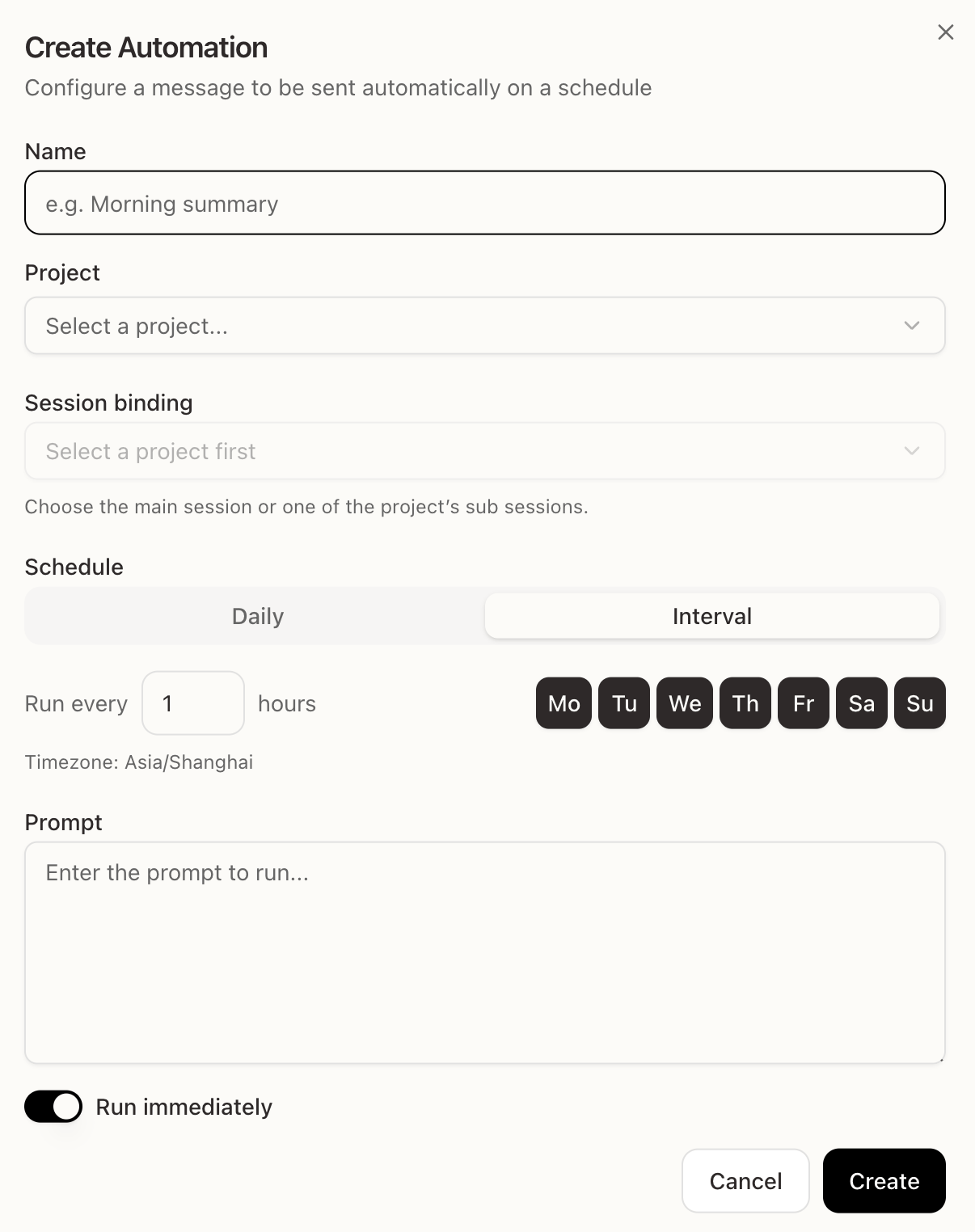
Automation はサイドバーから作成できます。Project の会話で Happycapy に作成を依頼することもできます。

<div style={{ borderRadius: '14px', border: '1px solid rgba(45, 36, 27, 0.12)', boxShadow: '0 18px 46px rgba(56, 38, 20, 0.09)', overflow: 'hidden', background: '#FFFFFF', marginBottom: '24px' }}>
  <div style={{ padding: '12px 16px', borderBottom: '1px solid rgba(45, 36, 27, 0.08)', background: '#FFFFFF' }}>
    <span style={{ display: 'block', color: '#2E2929', fontFamily: 'Instrument Serif, Georgia, "Times New Roman", serif', fontSize: '28px', fontWeight: 400, lineHeight: '1' }}>Automations</span>
    <span style={{ display: 'block', marginTop: '6px', color: '#8A8178', fontFamily: 'Instrument Serif, Georgia, "Times New Roman", serif', fontSize: '18px', fontWeight: 400, lineHeight: '1.2' }}>Project の定期作業をスケジュールします。</span>
  </div>

  <img src="https://mintcdn.com/happycapy/9SccTkPwiYpehlgU/images/features/automation-create.png?fit=max&auto=format&n=9SccTkPwiYpehlgU&q=85&s=55a207dea695692917019da117c0dd95" alt="Create Automation dialog" style={{ maxWidth: '100%', display: 'block', margin: '0 auto' }} width="1206" height="1524" data-path="images/features/automation-create.png" />
</div>

サイドバーから始める場合は、**Automations** をクリックし、**Create Automation** をクリックします。

Project の会話で作成する場合は、何をいつ実行するかをそのまま伝えます。

```text theme={null}
毎週金曜日の午後 4 時にこの Project を要約し、レポートを outputs/ に保存する Automation を作成して。
```

入力する項目：

* **Name** — "Morning summary" のような短い名前
* **Project** — Automation を実行する Project
* **Session binding** — メイン session、またはその Project 内の session
* **Schedule** — 毎日決まった時刻、または一定間隔
* **Prompt** — Happycapy が毎回実行する指示
* **Run immediately** — スケジュールとは別に今すぐ 1 回実行

**Create** をクリックして保存します。

## 各項目の意味

* **Project** は Automation を正しい workspace と files に紐づけます。
* **Session binding** は prompt がどの session context から続行するかを決めます。
* **Schedule** は Automation の実行タイミングを制御します。
* **Prompt** は Happycapy が毎回実行する指示です。
* **Run immediately** は、スケジュールに任せる前に一度テストするために使います。

## 信頼できる prompt を書く

Automation は同じ prompt を自動で繰り返し実行するため、prompt だけでタスクが分かるようにしておきます。

* 目的と出力形式を書く。
* 確認するファイル、フォルダ、サービスを書く。
* 結果をどこに保存または送信するかを書く。
* 「新しい内容がなければ短い no-update note を書く」のような fallback を入れる。

## 例

### 朝のブリーフ

```text theme={null}
AI、スタートアップ、プロダクトデザインのトレンドニュースを取得して。
クリックベイトを除外し、各項目を 1 文で要約して。
HTML のブリーフを生成してメールで送って。
```

### Project ステータスレポート

```text theme={null}
この Project で過去 1 週間に行った作業を要約して。
完了したタスク、未解決の課題、次のステップを一覧にして。
レポートを生成して outputs/ に保存して。
```

### GitHub review チェック

```text theme={null}
my-org/my-repo の open PR をすべて確認して。
レビューが必要なもの、または新しいコメントがあるものを一覧にして。
要約をこの Project に投稿して。
```

### ファイル処理

```text theme={null}
平日は毎日、uploads フォルダに新しい CSV ファイルがないか確認して。
新しいデータを整えて要約して。
要約を outputs/daily-data-summary.md に保存して。
新しいファイルがない場合は、短い no-update note を書いて。
```

<Tip>
  prompt は通常の session メッセージと同じように実行されます。Project で手動実行できる作業は、手順が繰り返せるなら Automation にできます。
</Tip>