> ## Documentation Index
> Fetch the complete documentation index at: https://docs.happycapy.ai/llms.txt
> Use this file to discover all available pages before exploring further.
# Custom Secrets
> Save private access keys so Happycapy can use external tools without exposing them in chat.
Custom secrets are private access keys for services outside Happycapy, such as GitHub, Notion, Fly.io, Stripe, or your own internal tools.
When a tool needs a token or API key, add it in **Settings > Sandbox > Custom secrets** instead of pasting it into chat. Happycapy injects the secret into the sandbox as an environment variable on each message.
## When to Use Custom Secrets
Use custom secrets when Happycapy needs to access a service or tool on your behalf.
Common examples include:
* checking GitHub repositories, pull requests, or workflow runs
* creating or updating Notion pages
* deploying or inspecting apps on platforms like Fly.io
* running scripts that call your own Stripe, analytics, database, or internal APIs
* using command-line tools that expect credentials from environment variables
## Add a Secret
1. Open **Settings**.
2. Go to **Sandbox**.
3. Find **Custom secrets**.
4. Click **Add**.
5. Enter a **Key**, **Value**, and **Description**.
6. Click **Create**.
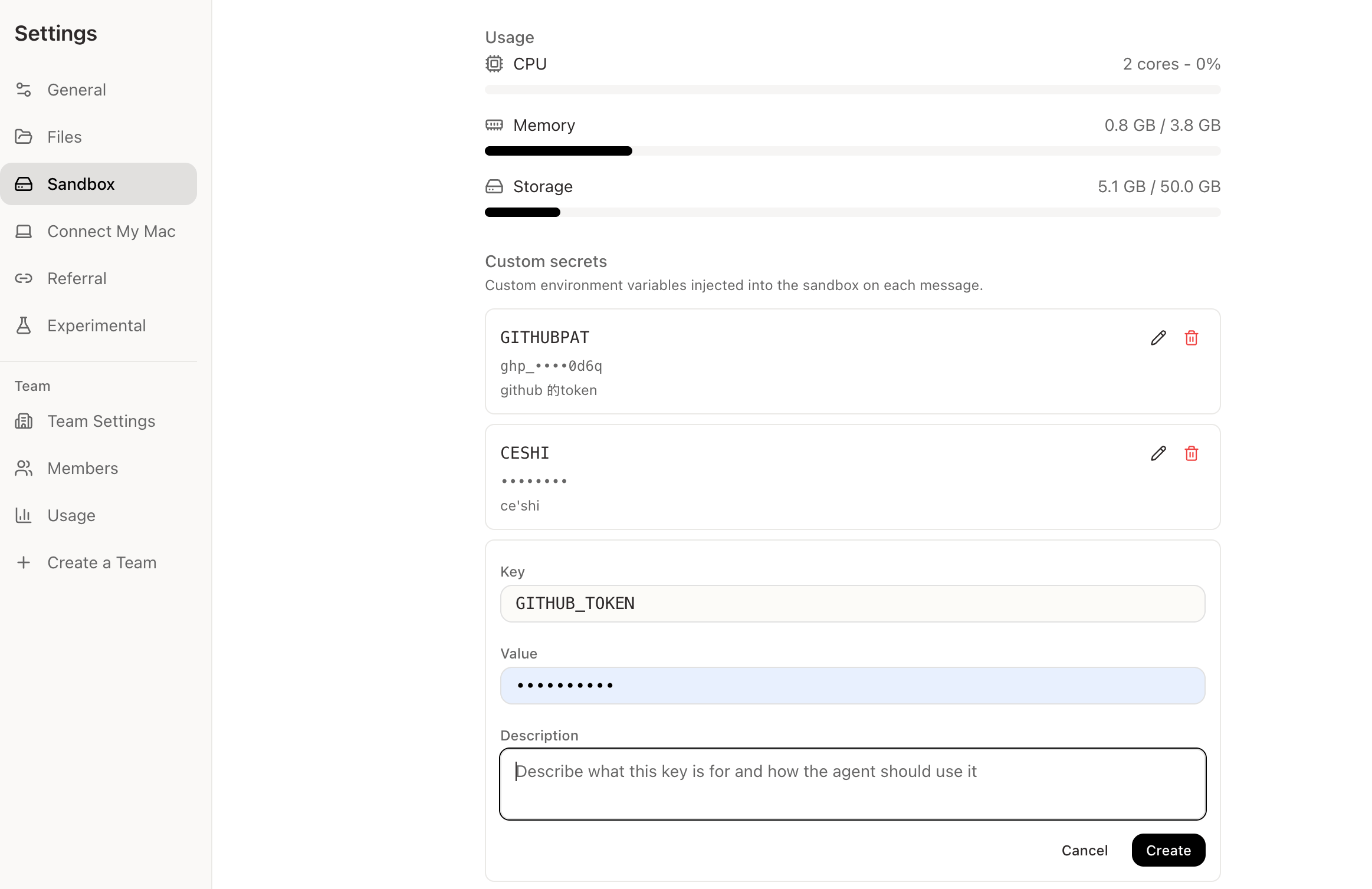 ## What Each Field Means
| Field | Plain meaning | Example |
| --------------- | --------------------------------------------------------- | -------------------------------------------------------- |
| **Key** | The name Happycapy and tools use to find this secret. | `GITHUB_TOKEN` |
| **Value** | The actual private token, API key, or secret value. | Paste the value from GitHub, Notion, or another service. |
| **Description** | A short note that tells Happycapy what the secret is for. | `GitHub access for checking PRs and workflow runs.` |
Write descriptions as short instructions, not just labels.
Good:
```text theme={null}
GitHub token for using the gh CLI and GitHub API in my repositories.
```
Too vague:
```text theme={null}
github token
```
## Common Examples
| Key | Use it for |
| -------------------- | ------------------------------------------------------------------------------------ |
| `GITHUB_TOKEN` | Reading repositories, checking pull requests, using the GitHub API, or running `gh`. |
| `NOTION_TOKEN` | Working with Notion pages or databases through the Notion API. |
| `FLY_API_TOKEN` | Deploying or checking Fly.io apps with `flyctl`. |
| `STRIPE_API_KEY` | Testing scripts that call your own Stripe account. |
| `INTERNAL_API_TOKEN` | Calling your company or project API from a script. |
These names are examples. Always use the key name expected by the tool, SDK, or CLI you plan to use.
## How Happycapy Uses Secrets
After you add a custom secret, you do not need to paste the value into chat. Ask for the task normally.
```text theme={null}
Use GitHub to check the latest failed workflow run and summarize what broke.
```
```text theme={null}
Use the Notion API to create a task list from this meeting summary.
```
Happycapy can see that the environment variable exists and can use your description to understand what it is for. Secret values stay hidden in the interface.
## Tips
Do not paste private tokens directly into chat.
Use clear, standard key names when possible. Tools often look for exact environment variable names.
Keep descriptions specific. Mention the service, tool, and intended use.
Delete secrets you no longer need.
If a tool cannot find a secret, check that the key name matches what the tool expects.
## Related resources
* [CLI tools](/en/integrations/cli): use command-line tools that read credentials from environment variables.
* [MCP](/en/integrations/mcp): connect Happycapy to external tools and systems through MCP servers.
* [Files](/en/features/files): manage uploaded files and generated outputs in the sandbox.
## What Each Field Means
| Field | Plain meaning | Example |
| --------------- | --------------------------------------------------------- | -------------------------------------------------------- |
| **Key** | The name Happycapy and tools use to find this secret. | `GITHUB_TOKEN` |
| **Value** | The actual private token, API key, or secret value. | Paste the value from GitHub, Notion, or another service. |
| **Description** | A short note that tells Happycapy what the secret is for. | `GitHub access for checking PRs and workflow runs.` |
Write descriptions as short instructions, not just labels.
Good:
```text theme={null}
GitHub token for using the gh CLI and GitHub API in my repositories.
```
Too vague:
```text theme={null}
github token
```
## Common Examples
| Key | Use it for |
| -------------------- | ------------------------------------------------------------------------------------ |
| `GITHUB_TOKEN` | Reading repositories, checking pull requests, using the GitHub API, or running `gh`. |
| `NOTION_TOKEN` | Working with Notion pages or databases through the Notion API. |
| `FLY_API_TOKEN` | Deploying or checking Fly.io apps with `flyctl`. |
| `STRIPE_API_KEY` | Testing scripts that call your own Stripe account. |
| `INTERNAL_API_TOKEN` | Calling your company or project API from a script. |
These names are examples. Always use the key name expected by the tool, SDK, or CLI you plan to use.
## How Happycapy Uses Secrets
After you add a custom secret, you do not need to paste the value into chat. Ask for the task normally.
```text theme={null}
Use GitHub to check the latest failed workflow run and summarize what broke.
```
```text theme={null}
Use the Notion API to create a task list from this meeting summary.
```
Happycapy can see that the environment variable exists and can use your description to understand what it is for. Secret values stay hidden in the interface.
## Tips
Do not paste private tokens directly into chat.
Use clear, standard key names when possible. Tools often look for exact environment variable names.
Keep descriptions specific. Mention the service, tool, and intended use.
Delete secrets you no longer need.
If a tool cannot find a secret, check that the key name matches what the tool expects.
## Related resources
* [CLI tools](/en/integrations/cli): use command-line tools that read credentials from environment variables.
* [MCP](/en/integrations/mcp): connect Happycapy to external tools and systems through MCP servers.
* [Files](/en/features/files): manage uploaded files and generated outputs in the sandbox.