> ## Documentation Index
> Fetch the complete documentation index at: https://docs.happycapy.ai/llms.txt
> Use this file to discover all available pages before exploring further.

# Publish & Remix

> Publish a remixable Project snapshot so others can copy it into a new Project, or so you can reuse it later.

export function LivePreview({url, label, linkLabel = "Open live result", fit = "content"}) {
  const isContentFit = fit === "content";
  return <div className={`hc-live-preview${isContentFit ? " hc-preview-content" : ""}`} style={{
    width: isContentFit ? "100%" : "clamp(320px, calc(100vw - 640px), 960px)",
    margin: isContentFit ? "18px 0 32px" : "18px 0 32px 50%",
    transform: isContentFit ? "none" : "translateX(-50%)",
    border: "1px solid rgba(46, 41, 41, 0.1)",
    borderRadius: "10px",
    overflow: "hidden",
    background: "rgba(255, 255, 255, 0.55)",
    boxShadow: "0 18px 45px rgba(46, 41, 41, 0.08)"
  }}>
      <style>{`
        .hc-live-preview-clip {
          position: relative;
          container-type: inline-size;
          aspect-ratio: 16 / 10;
          height: auto;
          overflow: hidden;
          background: white;
        }

        .hc-live-preview-frame {
          position: absolute;
          left: 0;
          top: 0;
          width: 1280px !important;
          height: 800px !important;
          max-width: none !important;
          border: 0;
          background: white;
          display: block;
          transform: scale(calc(100cqw / 1280px));
          transform-origin: top left;
        }

        @media (max-width: 1279px) {
          .hc-live-preview:not(.hc-preview-content) {
            width: 100% !important;
            margin-left: 0 !important;
            transform: none !important;
          }

          .hc-live-preview:not(.hc-preview-content) .hc-live-preview-clip {
            height: min(70vh, 520px);
          }

          .hc-live-preview:not(.hc-preview-content) .hc-live-preview-frame {
            width: 100%;
            height: 100%;
            transform: none;
          }
        }
      `}</style>
      <div style={{
    display: "flex",
    alignItems: "center",
    gap: "8px",
    padding: "10px 12px",
    borderBottom: "1px solid rgba(46, 41, 41, 0.08)",
    background: "rgba(46, 41, 41, 0.035)"
  }}>
        <span style={{
    width: "8px",
    height: "8px",
    borderRadius: "999px",
    background: "#F8A963"
  }} />
        <span style={{
    width: "8px",
    height: "8px",
    borderRadius: "999px",
    background: "rgba(46, 41, 41, 0.18)"
  }} />
        <span style={{
    width: "8px",
    height: "8px",
    borderRadius: "999px",
    background: "rgba(46, 41, 41, 0.18)"
  }} />
        <span style={{
    marginLeft: "8px",
    color: "rgba(46, 41, 41, 0.58)",
    fontSize: "0.82rem",
    overflow: "hidden",
    textOverflow: "ellipsis",
    whiteSpace: "nowrap"
  }}>{label}</span>
      </div>
      <div className="hc-live-preview-clip">
        <iframe className="hc-live-preview-frame" src={url} title={label} loading="lazy" style={{
    margin: 0,
    maxWidth: "none"
  }} />
      </div>
      <div style={{
    padding: "12px 14px",
    borderTop: "1px solid rgba(46, 41, 41, 0.08)",
    background: "rgba(255, 255, 255, 0.72)"
  }}>
        <a href={url} target="_blank" rel="noreferrer">{linkLabel}</a>
      </div>
    </div>;
}

## How Publish and Remix work

If you only want someone to view a conversation, file, or result, use **Share**.

Use **Publish** when you want someone to keep working from your Project. Publish saves a remixable Project snapshot. People with the link can view the snapshot, then **Remix** it into their own editable Project.

**Remix** creates a new Project from the snapshot. The copy is independent, so changes in the Remix do not affect the original Project.

You can also Remix your own published snapshot when you want to start from a stable version and explore another direction.

## When to use Publish and Remix

* You want someone to edit or adapt your Project
* You want a stable version that others can copy
* You want to explore another direction yourself
* You want a team or community to reuse your Project

<Note>
  Anyone with the published link can view the snapshot. Review files, chat history, tokens, secrets, and private information before you publish.
</Note>

## Publish a snapshot

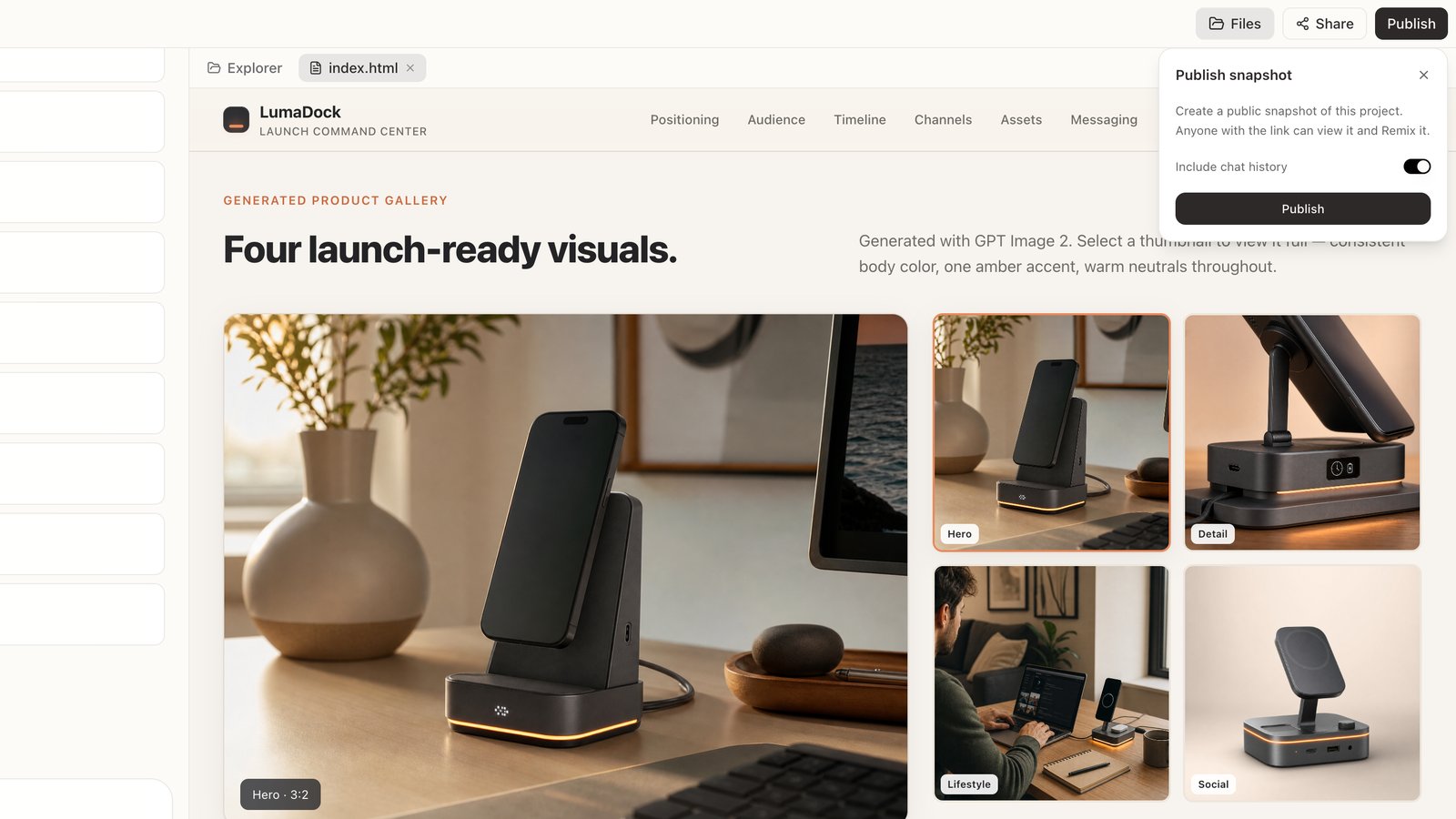
Click **Publish** in the top-right corner of a Project.

<div style={{ borderRadius: '14px', border: '1px solid rgba(45, 36, 27, 0.12)', boxShadow: '0 18px 46px rgba(56, 38, 20, 0.09)', overflow: 'hidden', background: '#FFFFFF', marginBottom: '24px' }}>
  <div style={{ padding: '12px 16px', borderBottom: '1px solid rgba(45, 36, 27, 0.08)', background: '#FFFFFF' }}>
    <span style={{ display: 'block', color: '#2E2929', fontFamily: 'Instrument Serif, Georgia, "Times New Roman", serif', fontSize: '28px', fontWeight: 400, lineHeight: '1' }}>Publish</span>
    <span style={{ display: 'block', marginTop: '6px', color: '#8A8178', fontFamily: 'Instrument Serif, Georgia, "Times New Roman", serif', fontSize: '18px', fontWeight: 400, lineHeight: '1.2' }}>Save a remixable Project snapshot.</span>
  </div>

  <img src="https://mintcdn.com/happycapy/qu9DbeP3oO1Bbe3K/images/features/publish-snapshot.png?fit=max&auto=format&n=qu9DbeP3oO1Bbe3K&q=85&s=e295fcb80229d4704896f484304d4805" alt="Publish snapshot panel" style={{ maxWidth: '100%', display: 'block', margin: '0 auto' }} width="1600" height="900" data-path="images/features/publish-snapshot.png" />
</div>

Choose what to include before you copy the link:

* **Include chat history** — include the conversation in the snapshot
* **Files only** — turn off chat history if you only want to publish the Project files
* **Past snapshots** — find and reshare links you published earlier

After publishing, copy the link and send it to anyone who should view or Remix the snapshot.

<Tip>
  A snapshot captures the Project at the moment you publish it. If you make important changes later, publish again to share the newer version.
</Tip>

## Remix a snapshot

Open a published snapshot and click **Remix**.

<LivePreview url="https://happycapy.ai/snapshots/e4f0e3b2-a8c8-4c50-91df-0789f7017d37" label="happycapy.ai/snapshots/e4f0e3b2-a8c8-4c50-91df-0789f7017d37" linkLabel="Open snapshot" />

Happycapy copies the snapshot into your workspace and opens it as a new Project. From there, you can edit files, continue the work, or ask Happycapy to take it in a new direction.

The copy is independent:

* changes in the Remix do not affect the original Project
* changes in the original Project do not update existing Remixes
* different people can Remix the same snapshot and work separately