> ## Documentation Index
> Fetch the complete documentation index at: https://docs.happycapy.ai/llms.txt
> Use this file to discover all available pages before exploring further.
# Projects
> Persistent workspaces for sessions, files, and ongoing work
## What is a Project?
A Project keeps related work in one workspace: sessions, files, and ongoing work. Use one Project for a codebase, campaign, client, research topic, content pipeline, or any task you expect to continue over time.
This makes Projects useful for work that spans more than one conversation. Start a task in one session, continue in another, and the files are already there.
## Start a Project
Click **New Project** in the sidebar, then describe what you want Happycapy to work on. Happycapy creates the Project and names it automatically based on your first prompt.
You can start with a prompt, upload files, or open an existing file in the Project.
One Project per codebase or initiative is a clean setup. Use multiple sessions inside that Project when you want to run related tasks in parallel.
## Work across sessions
Sessions
Parallel work, shared workspace.
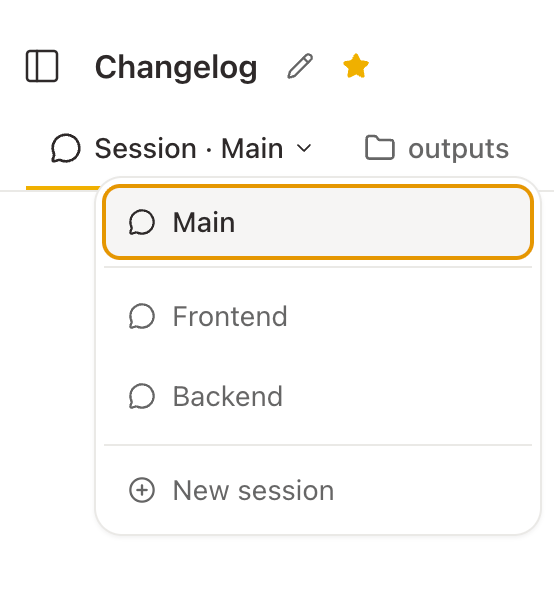
Inside each Project, you can run multiple sessions at the same time. Each session is its own conversation thread, but they work in the same Project workspace.
Practical uses:
- One session generates images while another writes the accompanying copy
- One session handles frontend code, another handles the backend
- One session researches a topic, another drafts the report
To open a new session: click the + button next to the session name at the top of the Project.
To switch between sessions: click the session name dropdown at the top.
## Keep files together
Sessions in the same Project can read and write the same files. Generated images, edited documents, code changes, reports, and other outputs stay with the Project instead of being scattered across separate conversations.
For more detail on browsing and managing project files, see [Files](/en/features/files).
## Folders and favorites
Folders group Projects in the sidebar. Click the **+** icon next to "Projects" (Create Folder) to make one.
Folders only change how Projects appear in the sidebar. They do not change the Project itself.
Click the **☆** icon in a session's header to pin it to the **Favorites** section at the top of the sidebar. Click again to remove it.