> ## Documentation Index
> Fetch the complete documentation index at: https://docs.happycapy.ai/llms.txt
> Use this file to discover all available pages before exploring further.

# Automations (Beta)

> Run recurring work in a Project on a schedule

<Note>
  **Beta:** Automations is in early access. Functionality will continue to improve.
</Note>

## What is an Automation?

An Automation is a scheduled prompt that runs inside a Project. It can use the Project's files, session context, and instructions, then save or send the result.

Automations are useful when the work is repeatable, has a clear schedule, and produces an output you can review.

## When to use Automations

Use Automations for recurring work with clear inputs and a repeatable output:

* Daily or weekly summaries
* Project status reports
* Scheduled file processing
* Recurring research or monitoring
* Periodic GitHub, Notion, or email checks
* Work that should continue while you are away

<Note>
  Automations work best when the prompt explains the goal, source material, output format, and what to do if there is nothing new.
</Note>

## Create an Automation

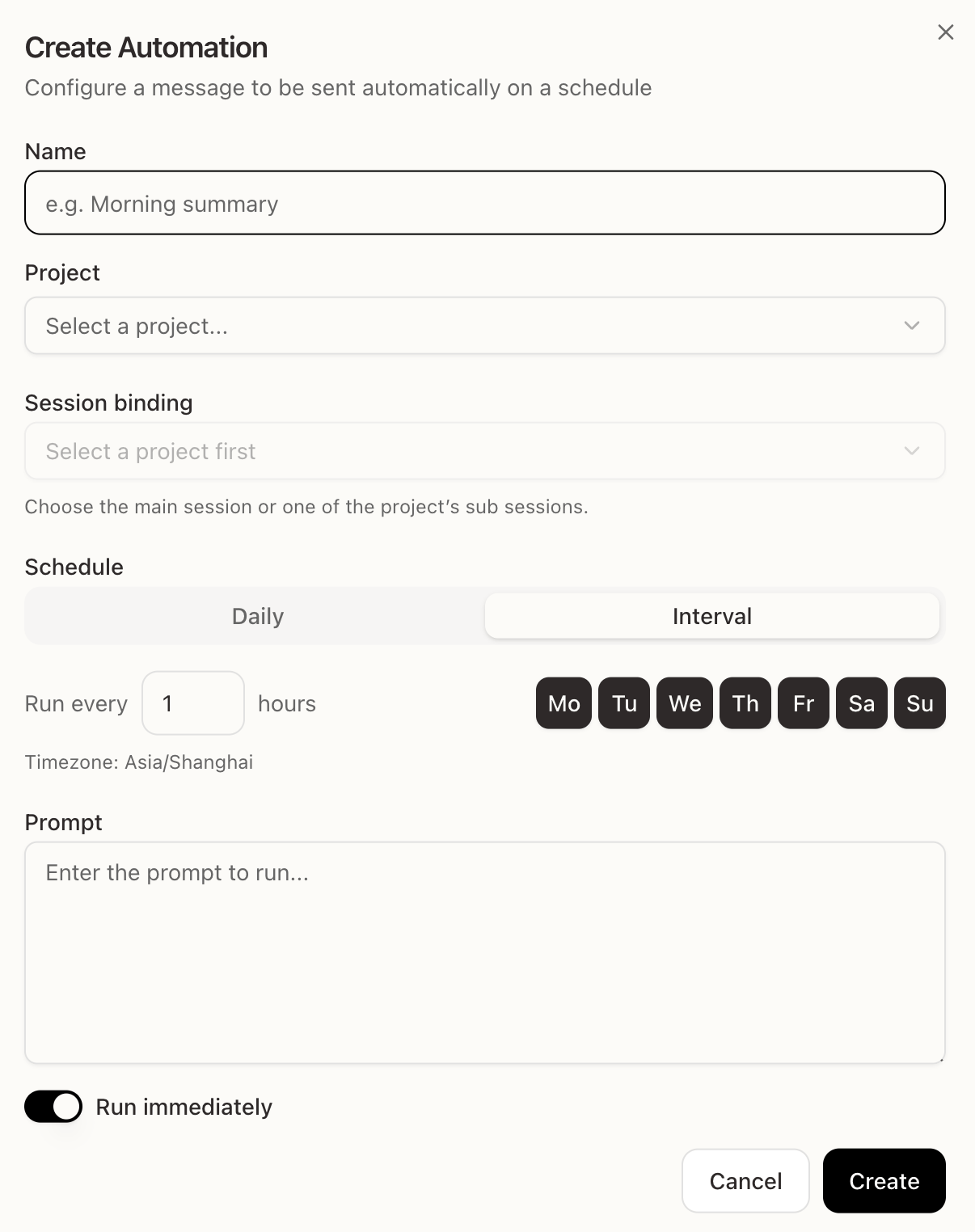
You can create an Automation from the sidebar. You can also ask Happycapy to create one from a Project conversation.

<div style={{ borderRadius: '14px', border: '1px solid rgba(45, 36, 27, 0.12)', boxShadow: '0 18px 46px rgba(56, 38, 20, 0.09)', overflow: 'hidden', background: '#FFFFFF', marginBottom: '24px' }}>
  <div style={{ padding: '12px 16px', borderBottom: '1px solid rgba(45, 36, 27, 0.08)', background: '#FFFFFF' }}>
    <span style={{ display: 'block', color: '#2E2929', fontFamily: 'Instrument Serif, Georgia, "Times New Roman", serif', fontSize: '28px', fontWeight: 400, lineHeight: '1' }}>Automations</span>
    <span style={{ display: 'block', marginTop: '6px', color: '#8A8178', fontFamily: 'Instrument Serif, Georgia, "Times New Roman", serif', fontSize: '18px', fontWeight: 400, lineHeight: '1.2' }}>Schedule recurring work in a Project.</span>
  </div>

  <img src="https://mintcdn.com/happycapy/9SccTkPwiYpehlgU/images/features/automation-create.png?fit=max&auto=format&n=9SccTkPwiYpehlgU&q=85&s=55a207dea695692917019da117c0dd95" alt="Create Automation dialog" style={{ maxWidth: '100%', display: 'block', margin: '0 auto' }} width="1206" height="1524" data-path="images/features/automation-create.png" />
</div>

To use the sidebar, click **Automations**, then **Create Automation**.

In a Project conversation, describe what should run and when:

```text theme={null}
Create an Automation that summarizes this Project every Friday at 4 PM and saves the report to outputs/.
```

Fill in:

* **Name** — a short label, such as "Morning summary"
* **Project** — the Project where the Automation should run
* **Session binding** — the main session or a session inside that Project
* **Schedule** — daily at a specific time, or on an interval
* **Prompt** — the instruction Happycapy will run
* **Run immediately** — run once now in addition to the schedule

Click **Create** to save it.

## What each field means

* **Project** keeps the Automation tied to the right workspace and files.
* **Session binding** decides which session context the prompt should continue from.
* **Schedule** controls when the Automation runs.
* **Prompt** is the instruction Happycapy executes each time.
* **Run immediately** lets you test the prompt once before relying on the schedule.

## Write a reliable prompt

Automations run without you typing the prompt again, so the prompt should be self-contained.

* State the goal and output format.
* Mention the source files, folders, or services to check.
* Tell Happycapy where to save or send the result.
* Include fallback behavior, such as "If there is nothing new, write a short no-update note."

## Examples

### Morning brief

```text theme={null}
Fetch trending news in AI, startups, and product design.
Filter out clickbait. Summarize each item in one sentence.
Generate an HTML brief and send it to my email.
```

### Project status report

```text theme={null}
Summarize all work done in this Project over the past week.
List completed tasks, open issues, and next steps.
Generate a report and save it to outputs/.
```

### GitHub review check

```text theme={null}
Check all open PRs in my-org/my-repo.
List any that need my review or have new comments.
Post a summary to this Project.
```

### File processing

```text theme={null}
Every weekday, check the uploads folder for new CSV files.
Clean and summarize any new data.
Save the summary to outputs/daily-data-summary.md.
If there are no new files, write a short no-update note.
```

<Tip>
  The prompt runs like a normal message in a session. Anything you can do manually in a Project can usually become an Automation when the steps are repeatable.
</Tip>